One toggle turns chat into a data analyst
Discover Mode is a setting that lives inside Phaide AI's chat. By default, chat answers the question you type. Switch Discover on, and the same chat agent stops being a responder and becomes an investigator.
When the mode is active, the agent first interprets what you are really trying to learn and works out which columns in your data are relevant. If anything about your tables or your intent is ambiguous, it asks clarifying questions before it runs anything. It then launches an automated exploration that examines your connected data from multiple angles in parallel, fact-checks the findings that look surprising or important, builds the supporting charts, and returns a report organized around your next decision.
It is the same chat window you already use. One button changes how deeply the AI works on your behalf.
Find the questions you didn't think to ask
A normal query answers exactly what you asked — no more. Discover Mode is built to go past that. Because the agent explores several hypotheses at once instead of running a single lookup, it covers ground a one-shot question would miss, and it is designed to surface the counterintuitive result: the segment that behaves against the trend, the value that does not fit, the relationship you weren't looking for.
The clarifying-question step matters more than it sounds. By confirming what an ambiguous column means or which time window you care about before analyzing, the agent avoids confidently answering the wrong question — a common failure mode when you hand data to AI blind.
You don't write SQL and you don't engineer prompts. You ask in plain language, answer a question or two, and get a report whose goal is to make the next action clear — not just to restate numbers back to you. Findings come with interactive charts and downloadable tables, so you can verify the work and carry it into your own deck or spreadsheet.
Switching it on takes one click
- Open New chat from the left sidebar.
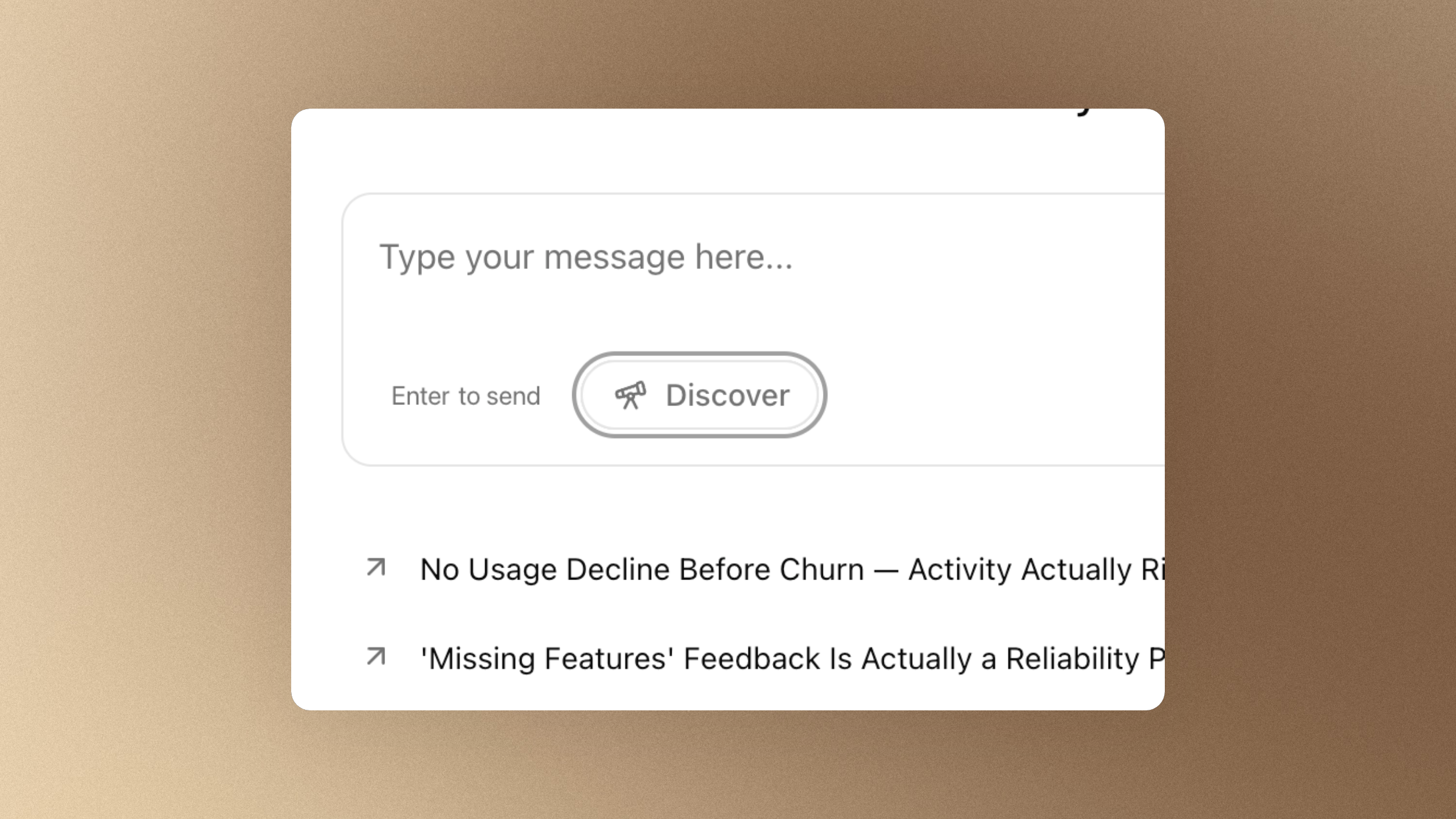
- In the message box, click the Discover pill — the button with the telescope icon, sitting just below where you type. It highlights when active. Click it again any time to turn the mode off.
- Type your question in plain language and press Send. For example: "Why did repeat purchases drop last quarter?"
- If the agent needs to confirm anything about your data or intent, it asks — up to five questions in a single step. Answer them, and it continues.
- Watch it explore, fact-check, and stream the report back in real time, complete with charts and tables you can download. Discover stays on for your follow-up messages, so you can keep digging in the same conversation.
Everything runs against the data sources already connected to your organization — databases, spreadsheets, and file uploads alike — inside your isolated tenant, so there is nothing extra to set up before your first investigation.
Your data has more to say
Most dashboards answer the questions you already know to ask. Discover Mode is for the ones you don't — the findings hiding one layer beneath the obvious. Turn it on once, ask the thing you've been wondering about, and let it show you what you would have missed.
FAQ
How is Discover Mode different from regular chat? Regular chat answers the specific question you ask. Discover Mode runs a structured investigation: it interprets your intent, asks clarifying questions, explores your data from multiple angles in parallel, fact-checks the notable findings, and returns a decision-oriented report. It is the same chat agent working at greater depth.
Do I need to know SQL or write special prompts? No. You ask in everyday language. The agent handles the analysis and, when something is unclear, asks you a short set of questions rather than guessing.
Where do I turn it on? Inside any chat. Click the Discover pill with the telescope icon, located just below the message box. It highlights when active and toggles off with another click.
What data does it analyze? Whatever is connected to your organization — databases, spreadsheets, and uploaded files. The exploration runs within your isolated tenant, and Phaide AI masks sensitive values during analysis.
Will it keep asking me questions every time? Only when your request or data is genuinely ambiguous, and never more than five questions at once. Once it has what it needs, it runs straight through to the report.
Can I keep going after the first report? Yes. Discover Mode stays active across follow-up messages, so you can refine the question or push deeper without re-enabling anything. Results include interactive charts and tables you can download as CSV, XLSX, JSON, or TSV.
Does it work for large or complex datasets? Yes. The exploration runs multiple analyses in parallel rather than a single query, which is exactly what helps it surface patterns that a one-shot question would overlook.