Set the analysis once, read the report on repeat
Phaide AI's exploration analysis takes a plain-language question, splits it into several competing hypotheses, runs them in parallel against your data, and returns a report with inline charts, tables, and interactive widgets. Until now, every run started with a human typing the request.
Exploration Scheduling removes that step. A schedule is a saved template: it holds the analysis request, the depth, and a cadence. When each scheduled time arrives, Phaide AI spawns a brand-new exploration on its own, runs the full pipeline, and adds the finished report to your run history. The original request never changes, so every run is comparable to the last.
The feature lives on the Discovery page, in a dedicated Schedules section beneath the search box. It is built on the same exploration engine as manual runs—same approaches, same parallel agents, same surprising-discovery pass at the end—so a scheduled report is indistinguishable from one you launched by hand.
Each schedule keeps its own run history. Open it and you see every exploration the schedule has spawned, newest first, with its status and progress; select one to read the full report just as you would a manual exploration. The schedule itself also remembers its most recent run, so the latest result is always one click away from the list.
Why a standing analysis beats a one-off
A one-off exploration answers today's question. A schedule answers it every day, week, or hour without anyone remembering to ask.
That changes how recurring analysis works. A weekly churn review, a Monday-morning sales summary, a daily data-quality scan—each becomes a quiet background job instead of a recurring calendar reminder. The report is already written by the time you sit down to read it.
Because the request is fixed, the runs form a timeline. You can open the run history for any schedule and watch how findings shift from one period to the next, rather than re-deriving the analysis from scratch and hoping you framed it the same way. Each run is also a fresh exploration, so it reflects the latest data the moment it fires, not a stale snapshot.
It inherits everything the exploration engine already offers: analysis runs against masked data, so sensitive values such as names and email addresses stay hidden while the patterns remain intact, and every schedule is scoped to your organization and account. Set the depth to match the stakes—a quick three-branch scan for a routine check, or a comprehensive fifty-branch investigation for a monthly deep dive.
Each run also closes with a background pass that records the most surprising findings, so the discoveries accrue across runs rather than vanishing when you close the report. And the schedule list stays honest about state: a run still in progress shows a spinner, a paused schedule is marked, and the next firing time is printed beside each row, so a glance tells you what has happened and what is coming.
Setting up your first schedule
Open the Discovery page from the sidebar. Below the exploration search box you will find the Schedules section. Select New schedule to open the dialog.
The form takes five inputs:
- Name — an optional label so the schedule reads clearly in the list, for example "Weekly churn analysis." Leave it blank and Phaide AI uses the first line of your request.
- Analysis Query — the question or theme to explore, written the same way you would phrase a manual exploration, such as "Analyze HR data and identify attrition factors."
- Depth — how far each run digs: Quick (3), Standard (10), Detailed (20), or Comprehensive (50). Higher depth explores more branches and takes longer.
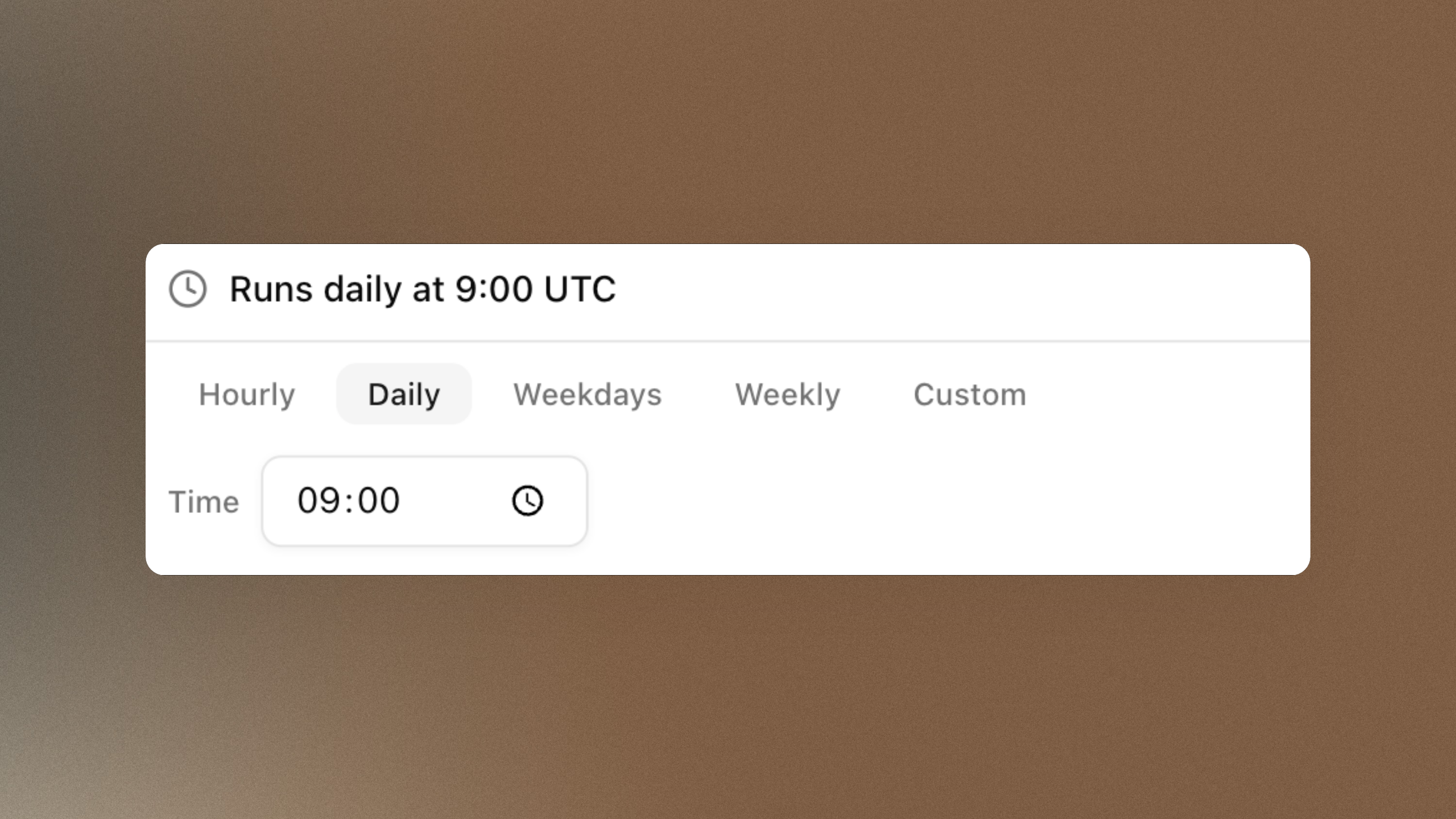
- Trigger — the cadence. Choose Hourly, Daily, Weekdays, or Weekly from the tabs and set the time, or switch to Custom to enter a cron expression directly for anything more specific.
- Timezone — the zone the trigger time is read in. It defaults to your profile timezone, so "9:00 daily" means 9:00 where you are.
Select Save, and the schedule appears in the list with its cadence and next run time. From there each schedule offers a full set of controls: Run now triggers an immediate off-cadence run, the menu lets you Edit the template, Pause and Resume the cadence, and View runs opens the run history of every exploration it has produced. Delete removes the schedule while keeping the reports it already generated, so past findings stay browsable.
Behind the scenes, a dispatcher checks every minute for schedules that have come due and launches their runs—so a job set for 9:00 fires at 9:00, with built-in safeguards against double-firing.
Let your data report to you
The best analysis is the one that's already done when you need it. With Exploration Scheduling, your most important questions answer themselves on a rhythm you set—and you walk in to insight instead of a blank search box. Set one schedule today and let Phaide AI take the next shift.
FAQ
Does a scheduled run differ from a manual exploration? No. A schedule spawns the exact same exploration pipeline a manual run uses—the same approaches, parallel analysis agents, report, and surprising-discovery pass. The only difference is that Phaide AI starts it for you.
What cadences can I set? Hourly, Daily, Weekdays, or Weekly through the trigger tabs, each with a configurable time. For anything more specific, switch to Custom and enter a cron expression directly.
Will the run use the correct local time? Yes. Each schedule carries its own timezone, which defaults to your profile setting, so the trigger time is interpreted in the zone you expect.
Can I run a schedule immediately without waiting for its next slot? Yes. Use Run now on any schedule to launch an off-cadence run right away. It does not affect the regular cadence.
What happens to past reports if I delete a schedule? They are kept. Deleting a schedule removes only the recurring template; every exploration it already produced stays available in your reports.
Can I temporarily stop a schedule without losing it? Yes. Pause halts future runs while preserving the schedule and its settings, and Resume starts the cadence again from the next slot.
Is my sensitive data exposed in scheduled runs? No. Scheduled explorations run against masked data exactly as manual ones do, so sensitive values stay hidden while the analytical patterns remain available.