What the Knowledge Base Is
The Knowledge Base is a single place in Phaide AI where you store the background information that raw tables leave out — what your company does, what a product SKU actually means, how a metric is defined, and how your data pipeline is wired together. You reach it from Knowledge in the left sidebar, sitting between Explore and Database.
It holds three kinds of context. Uploaded files are .txt and .md documents you bring in — a glossary, a metric definition sheet, notes on how your ingestion runs. The Schema view is generated automatically from the data you have already ingested: table names, columns, types, value ranges, and sample values, presented read-only. Memory is a set of topic-by-topic notes the AI keeps across sessions and that you can edit by hand at any time.
Behind the scenes, all three are folded into the instructions the AI reads before it answers. Whether you open a chat, generate a dashboard, or launch an automated exploration, the same business context travels with the request — so the model reasons about your organization, not a generic database.
Why It Sharpens Every Answer
Most wrong answers in analytics come from missing context, not missing data. A column called status could mean an order state or a subscription state; region codes mean nothing without a legend. The Knowledge Base closes that gap once, centrally, so you stop pasting the same explanations into every conversation.
Because the context is shared across the whole organization, every teammate's analysis inherits the same definitions. A metric defined once is interpreted the same way in a colleague's chat, in a scheduled exploration, and on a generated dashboard. That consistency is what turns ad-hoc question-asking into a reliable analytics practice.
The Schema view also keeps the AI honest about what actually exists. Because it is regenerated from your ingested data, the model works from real table and column names instead of guessing — which means fewer hallucinated fields and queries that run on the first try. And Memory compounds over time: useful facts the AI learns during analysis are retained, so the system gets more fluent in your business the more you use it.
How to Use It
Open Knowledge from the left sidebar. The page is organized top to bottom by the three context types.
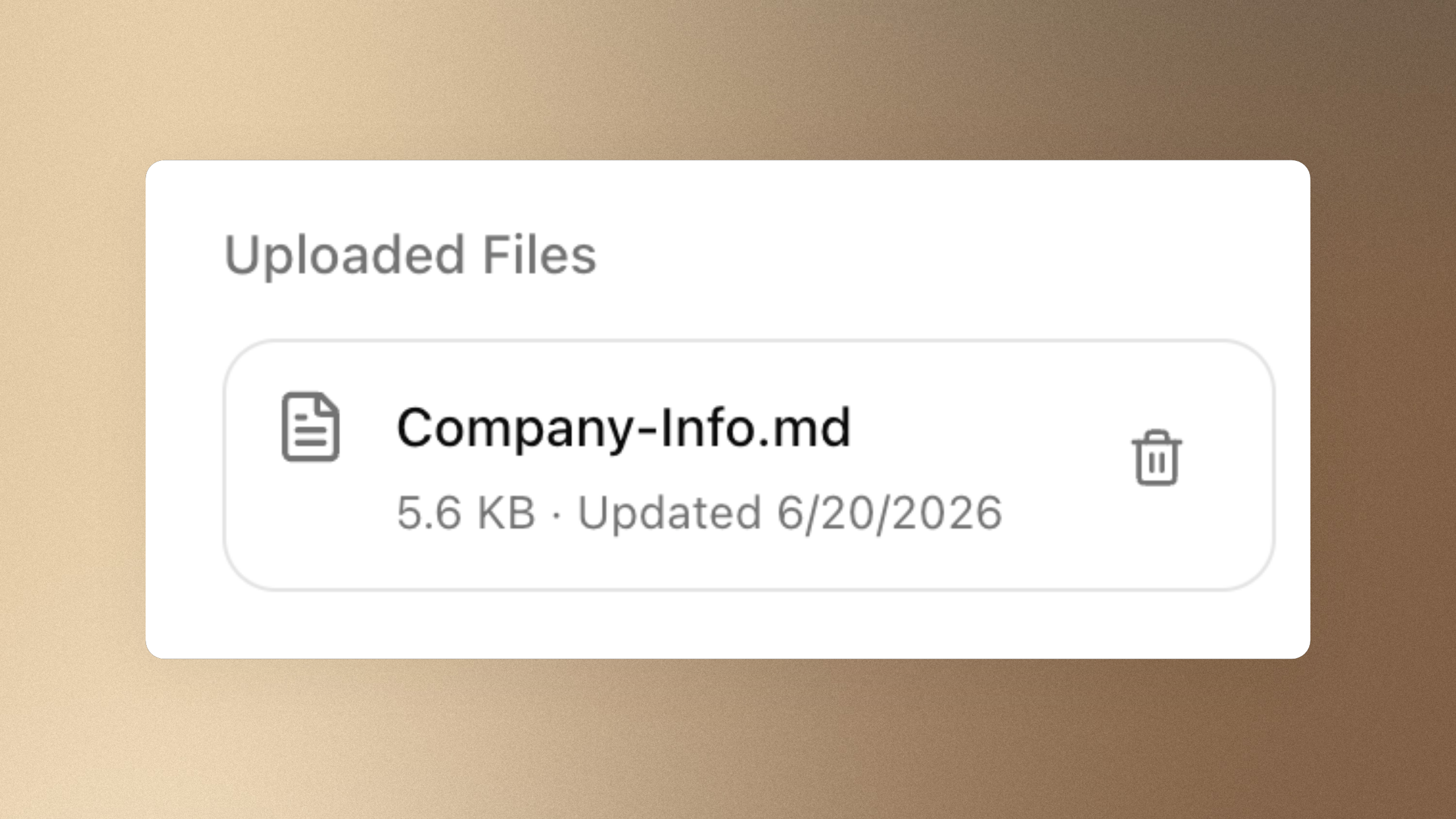
To add a document, drag a .txt or .md file onto the upload area at the top, or click it to pick files — you can add several at once. Prefer to type directly? Click or write manually, give your note a name, paste or write Markdown, and upload. Each file appears as a card under Uploaded Files, showing its name, size, and date; remove anything outdated with its delete control. Keep individual files under 50KB.
Under Other context, open Schema to review the structure the AI sees — this is read-only and refreshes as you ingest more data. Open Memory to read the notes the AI has kept; click any topic to edit its content and save. That's the whole loop: upload what the AI should know, check what it already knows, and correct anything that's off.
Your Data Already Has the Numbers — Give It the Story
Numbers tell you what happened; context tells you why it matters. With a few minutes spent filling in your Knowledge Base, every question you ask from then on lands with the full picture already in place. Set it up once, and let every analysis that follows be sharper for it.
FAQ
What file formats can I upload?
Plain text (.txt) and Markdown (.md) files. Each file should stay under 50KB; larger files are skipped when context is assembled, so split long documents into focused notes.
Where does the AI actually use this context? It is injected into the AI's instructions for chat analysis, dashboard generation, and automated exploration alike — so the same knowledge applies everywhere you analyze.
What's the difference between Memory and an uploaded file? Uploaded files are documents you curate and manage directly. Memory is a set of notes the AI writes for itself as it works, organized by topic and retained across sessions. You can edit Memory by hand, but it fills in automatically over time.
Is the Schema something I edit? No. The Schema view is generated from your ingested data and is read-only. It updates as you bring in or change data sources, so it always reflects the tables the AI can actually query.
Is my Knowledge Base shared with other organizations? No. Context is scoped to your organization. Everyone on your team draws from the same Knowledge Base, but it is never visible to other tenants.
Do I need to set this up before I can analyze anything? No. Analysis works out of the box using the automatically generated Schema. The Knowledge Base is how you make answers more accurate — most valuable when terms, metrics, or your pipeline need explanation that the raw tables don't provide.
How often should I update it? Whenever a definition, product, or pipeline detail changes. Because the context is read on every request, an edit takes effect on your very next question — no re-indexing or waiting required.