Phaide runs as an MCP server, which means the AI app you already talk to every day can query your organization's data directly — no export, no bespoke connector, no SQL. This guide walks the whole setup end to end: what to paste where, what the approval screen is actually asking you, and what to try first once you are connected. It takes about three minutes, and you do not write any code.
Watch the setup, start to finish
Before the written steps, here is the entire flow in Claude — opening the connector settings, pasting the server URL, and approving the connection.
Before you start
You need three things, and two of them you already have.
- A Phaide account in an organization with at least one connected data source. Without one, the connection still works, but the first thing your agent asks for comes back as "here is how to connect data" instead of a schema.
- An MCP-capable AI app. Claude and ChatGPT both support custom connectors. So do the MCP Inspector, a Python
fastmcpclient, and anything else that speaks Streamable HTTP. - Nothing to install. The recommended path has no CLI, no local proxy and no key to store.
The same three steps also live inside the product: open the account menu — your initials at the bottom-left of the sidebar — choose Developer, and open the MCP tab. That page is the canonical copy, and it has a copy button next to every value below.
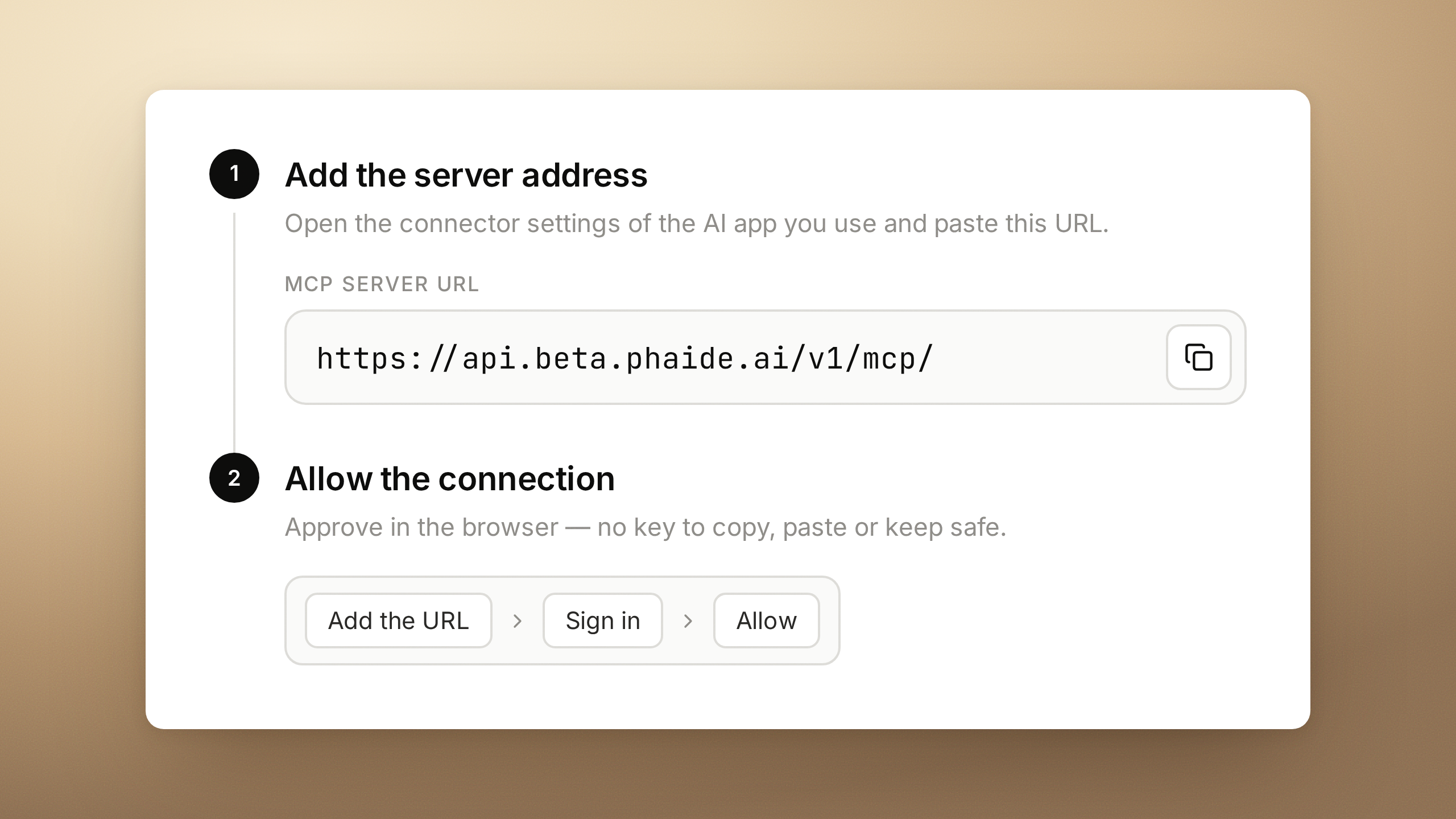
Step 1 — Add the server address
Open the connector settings of your AI app and paste the Phaide MCP endpoint:
https://api.beta.phaide.ai/v1/mcp/
- In Claude: Settings → Connectors → Add custom connector.
- In ChatGPT: Settings → Connectors → Add.
The name is up to you — "Phaide" works. Keep the trailing slash: the endpoint accepts the URL without it, but some clients drop the Authorization header when they follow the redirect, which then looks like an authentication failure that has nothing to do with your credentials.
Two properties of the endpoint are worth knowing, because a few clients ask for them explicitly. The transport is Streamable HTTP, and the server is stateless — no session is pinned to a process, so nothing breaks when the request lands on a different machine.
Step 2 — Approve the connection
There are two ways to authenticate, and unless your app cannot do the first one, use the first one.
| Method | Approve in the browser (recommended) | Paste an API key |
|---|---|---|
| Best for | Claude, ChatGPT, and any host that supports OAuth | Your own scripts, and apps without the browser flow |
| What you handle | Nothing — no secret is ever shown to you | A key string you copy once and store yourself |
| Scope | Exactly what you tick on the approval screen | All of your own permissions — it cannot be narrowed |
| Turning it off | Connected apps tab → Disconnect | API keys tab → Revoke |
The browser flow
Once the URL is added, pressing Connect sends you to Phaide's own approval screen. Three things happen there, and all three are decisions you make rather than the app makes.
- Sign in, if you are not already.
- Pick the organization to connect. One connection is a single user, in a single organization, for a single app — that is where the tenant boundary is drawn, and an app connected to one organization can never see another.
- Choose what to hand over, then press Allow. Some rows are ticked and locked: they reach the organization as a whole, so there is no smaller version of them to offer, and refusing one means refusing the connection. The rest — dashboards, chats, reports — expand so you can name which ones the app may reach, and whether it may only read them or also change them.
That last part is worth reading slowly, because it fails closed. Granting "view dashboards" is not the same as choosing dashboards: if you tick the permission but select nothing, the app sees an empty list. Selecting "all" does include things created later. And the screen never offers you more than your own role allows — a Viewer is not shown code execution even if the app asked for it, and data ingest is only offered to owners and admins.
The API key path
For a client that cannot do the browser flow — a script of your own, a CI job, an internal service — create a key instead.
- Account menu → Developer → API keys → Create API key.
- Give it a Label and an Expiration — 1 hour, 1 day, 7 days, 30 days, 1 year, or no expiration on self-hosted deployments.
- Copy it immediately. The key is shown once, at creation, and never again.
- Send it on every request as a Bearer token:
Authorization: Bearer ph-v1-xxxxx
Before wiring it into anything, confirm the key is live in the environment you are pointing at. A 200 means yes:
curl -H "Authorization: Bearer ph-v1-xxxxx" https://api.beta.phaide.ai/v1/me
Keys are environment-specific. A key issued in one environment will not authenticate against another, which is by far the most common cause of a connection that refuses to authenticate on the very first call.
For config-file clients, the same key goes in your MCP client config:
{
  "mcpServers": {
    "phaide": {
      "command": "uvx",
      "args": [
        "fastmcp-remote", "https://api.beta.phaide.ai/v1/mcp/",
        "--header", "Authorization: Bearer ph-v1-xxxxx"
      ]
    }
  }
}
Either way — browser or key — the app only ever reaches the organization you connected. Cross-tenant requests do not return "forbidden"; they return "not found", so no one can count error codes to learn what exists.
Step 3 — Ask your first question
Once the connector is on, there is nothing new to learn. Talk to your AI app the way you always do, and it reaches for Phaide when your question needs your data.
| What it can now do | Try saying |
|---|---|
| Ask your data directly. Questions go straight to your own tables — nobody writes SQL or exports a CSV first. | "Show me last month's revenue by product category." |
| Check the numbers for real. Phaide runs the calculation in a sandbox instead of guessing, so the answer comes from your data. | "Find out why churn went up in June." |
| Let it dig on its own. Hand over a theme and Phaide analyses it from several angles, then reports what it found. | "Look for anything unusual in this month's data." |
| Build and update dashboards. Turn an analysis into a dashboard, or have an existing one rebuilt with fresh numbers. | "Turn this into a dashboard for the sales team." |
| Write and share reports. Draft a report with live charts embedded, publish it, and hand out an expiring link. | "Write this up as a report and give me a link to share." |
| Remember how you work. House rules and definitions are stored, so you do not explain them again next session. | "Remember that revenue always excludes tax." |
| Find data to connect. Search 760+ SaaS tools and databases, and see what credentials each one needs. | "I want to bring in our Stripe data." |
A good first move is simply asking your agent what it can see. That call returns the schema, your uploaded context files and the memory Phaide has accumulated in one go — and when no data source is connected yet, it returns the setup steps instead, so the agent tells you what is missing rather than guessing.
What the connection actually exposes
You do not need this section to use Phaide over MCP. It is here for the person wiring up their own client.
Context
phaide_get_context— call this first. Schema, uploaded context files and stored memory in one go; when no data source is connected, the setup steps instead.phaide_search_available_data_sources— the catalog of connectable sources, native connectors plus 760+ managed SaaS, including the credentials each one needs.phaide_memory— write durable facts back to the memory documents that survive across sessions.
Analysis
phaide_execute_sql— one read-only SELECT against a directly-connected source, returned as CSV.phaide_execute_python— Python in the sandbox. Calls sharing asession_keykeep their variables, imports and files, so it behaves as a stateful REPL.phaide_start_exploration— start an autonomous exploration and get its id back immediately.phaide_exploration_result— collect the findings once they are ready.
Dashboards
phaide_load_dashboard_skill— read the widget contract before any dashboard work.phaide_list_dashboards— what this account can reach, most recently updated first.phaide_get_dashboard— one dashboard's current widget definitions, the base you edit from.phaide_update_dashboard— save a dashboard; omit the id to create a new one, pass it to edit.
Reports
phaide_list_reportsandphaide_get_report— what exists, and one report's current version.phaide_create_reportandphaide_update_report— author from Markdown, with charts and tables snapshotted straight out of a Python session, and revise as immutable versions.phaide_publish_report— publish the current revision.phaide_create_report_share_linkandphaide_revoke_report_share_link— issue an expiring anonymous link to the published revision, and take it back.
Analysis runs asynchronously where it matters — an exploration returns its id immediately and you collect the findings later — so a long-running question never holds a connection open or times out. And results stay lean: large payloads stay server-side and come back as references you resolve only when you need them.
A minimal Python client, for a connection authenticated with a key:
import asyncio
from fastmcp import Client

URL = "https://api.beta.phaide.ai/v1/mcp/"
KEY = "ph-v1-xxxxx"  # an API key verified via /v1/me

async def main():
    async with Client(URL, auth=KEY) as client:
        print([t.name for t in await client.list_tools()])

        ctx = await client.call_tool("phaide_get_context", {})
        print(ctx.content[0].text[:500])

        run = await client.call_tool(
            "phaide_execute_python",
            {
                "session_key": "k3n8q",
                "code": "df = phaide.query('SELECT 1 AS n'); print(df)",
            },
        )
        print(run.content[0].text)

asyncio.run(main())
To poke at the server by hand first, npx @modelcontextprotocol/inspector gives you a GUI: set the transport to Streamable HTTP, the URL to the endpoint above, and add the Authorization header.
Keeping access under control
Every connection stays visible and reversible from one place: Developer → Connected apps. Each row shows which app it is, what the connection reaches, when it was last used, and a Disconnect button. Disconnecting takes effect on the app's next request — there is no propagation delay to wait out.
Three more things worth knowing:
- Permissions are re-checked on every request, against your current role. If your role is lowered after you approved a connection, the token loses that authority immediately, without anyone touching it.
- API keys are revoked from the API keys tab, and revocation cannot be undone. Every application using that key loses access at once, so restoring access means issuing a fresh key.
- A connection is scoped to one organization. If you belong to several and want your agent to reach two of them, connect twice and pick a different organization each time.
When something does not work
| What you see | What it usually is |
|---|---|
| Every call fails to authenticate, right from the first one | A key from a different environment, or a redirect that dropped the header. Check the key with /v1/me, and keep the trailing slash on the endpoint. |
| Connected, but the dashboard or report list comes back empty | The permission was granted, but no resources were selected on the approval screen. Reconnect and tick the ones the app should reach. |
| The agent says there is no data to look at | No data source is connected to that organization yet. The context call returns the setup steps — follow those, then ask again. |
| A permission you expected was never offered | Scopes can only narrow what your role already allows. Code execution needs an editing role; data ingest is owner and admin only. |
| A specific dashboard "does not exist" although you can see it in Phaide | It was not selected for this connection. Unselected resources are reported as missing rather than forbidden, on purpose. |
Your data, where you already work
The point of connecting over MCP is not a new interface to learn. It is the opposite: the questions your team would have typed into Phaide can now be answered in the chat they already have open, with the same engine, the same governance, and a boundary you drew yourself on the approval screen.
Paste the URL, press Allow, and ask it something.